By Robert J. Corn · Founder, AetherCut
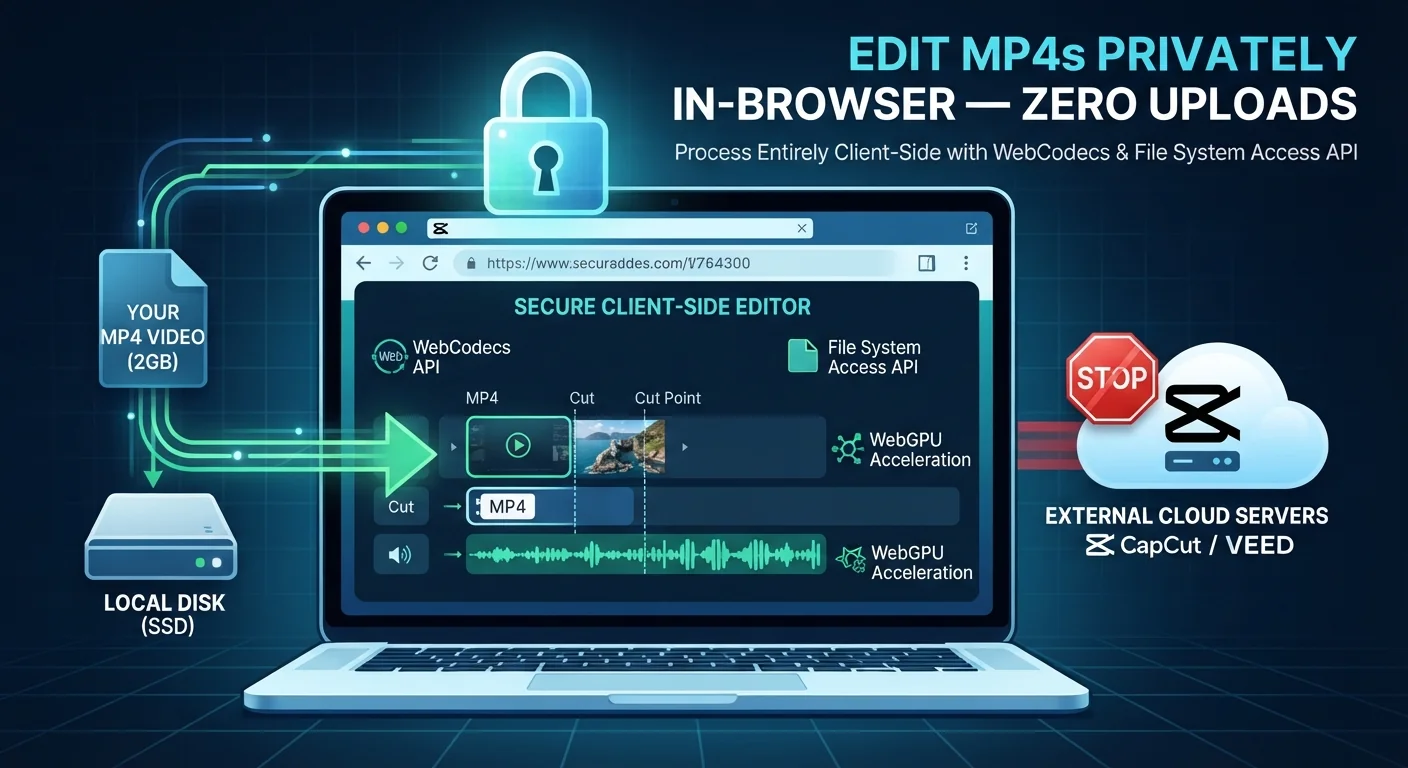
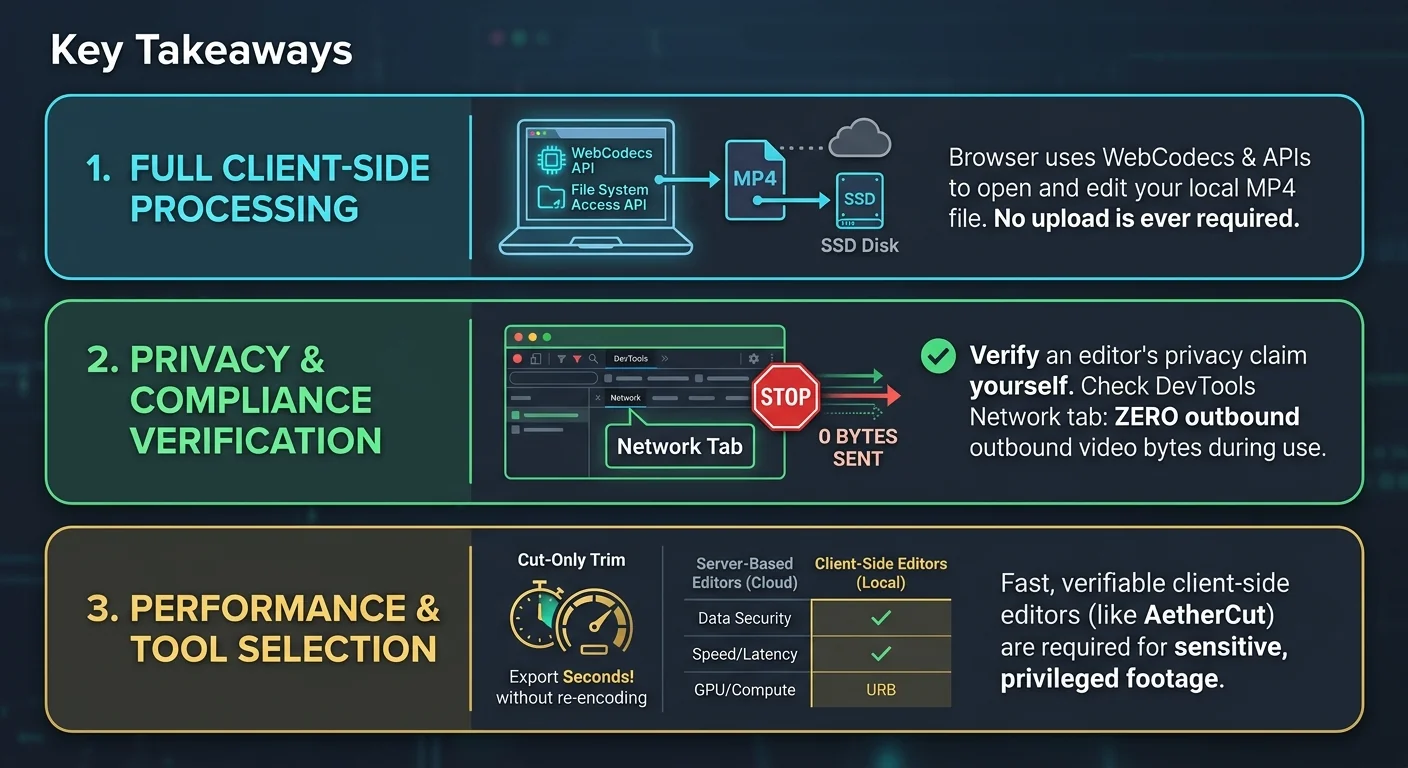
You can edit an MP4 in your browser without uploading it by using the File System Access API and WebCodecs to process files entirely client side. Most popular online editors like CapCut, Clipchamp, and VEED process footage on their own servers, meaning your file leaves your machine before the first cut. You can verify an editor's privacy claim by opening DevTools, watching the Network tab, and confirming zero outbound video bytes during a trim and export cycle. Cut-only trims copy existing keyframe segments to export a 2 GB MP4 in seconds with zero generation loss, but cut points snap to keyframes every 2-10 seconds. For sensitive footage like legal depositions or patient recordings, a verifiable client side editor is required because server-based tools disqualify you from compliance.
Yes, you can edit an MP4 in your browser without uploading it, using WebCodecs and the File System Access API to process the file client-side. Trims, crops, captions, and 4K export work this way; background swaps and heavy effects depend on your device's GPU. This guide maps which tasks run where, and how to verify an editor never sends your bytes anywhere.
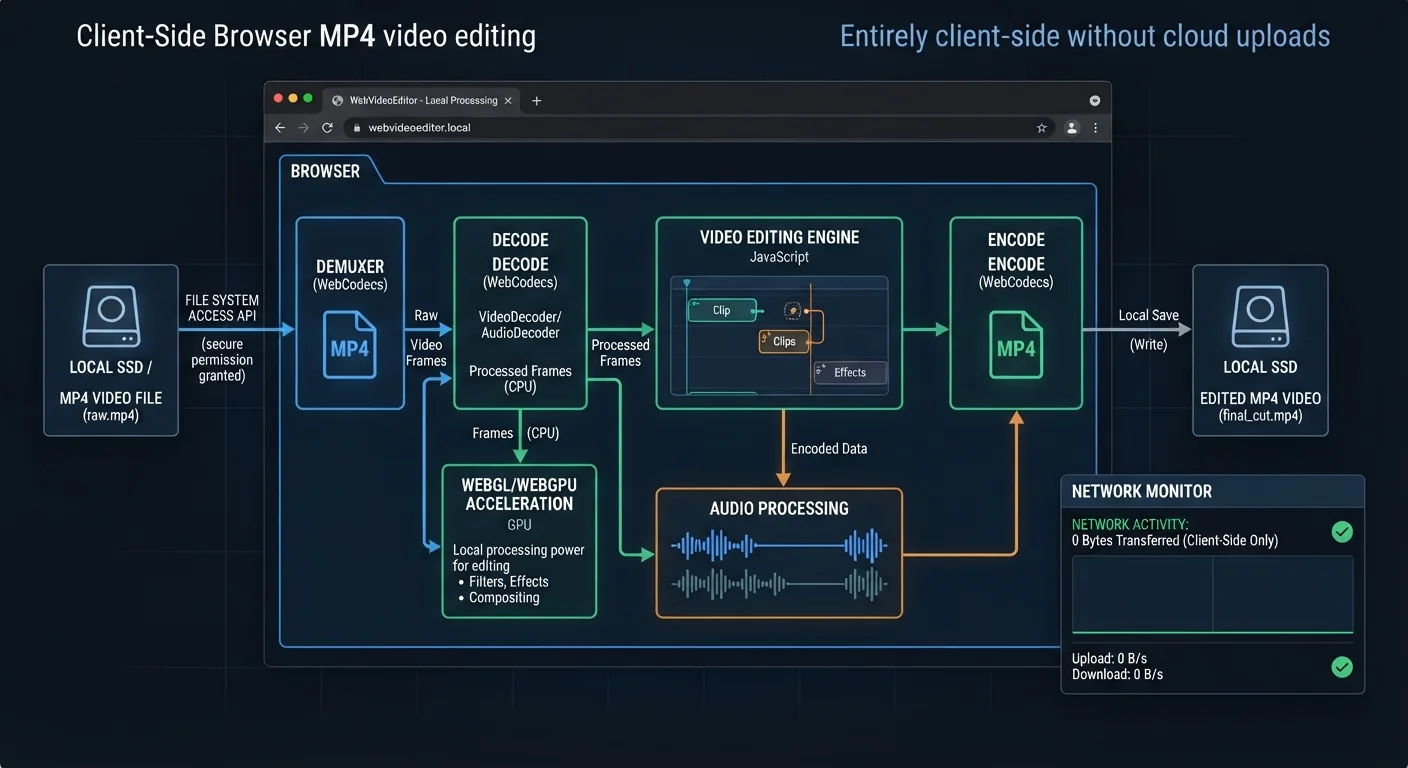
Client side editing means the browser opens your MP4 from disk, decodes frames locally, and writes the export back to your drive. Three APIs make this possible: the File System Access API reads and saves files directly, WebCodecs decodes and encodes video frames in JavaScript, and WebGPU accelerates the pixel work like scaling, color, and effects. Nothing crosses the network, so there is no server to comply with HIPAA, privilege, or an NDA on your behalf.
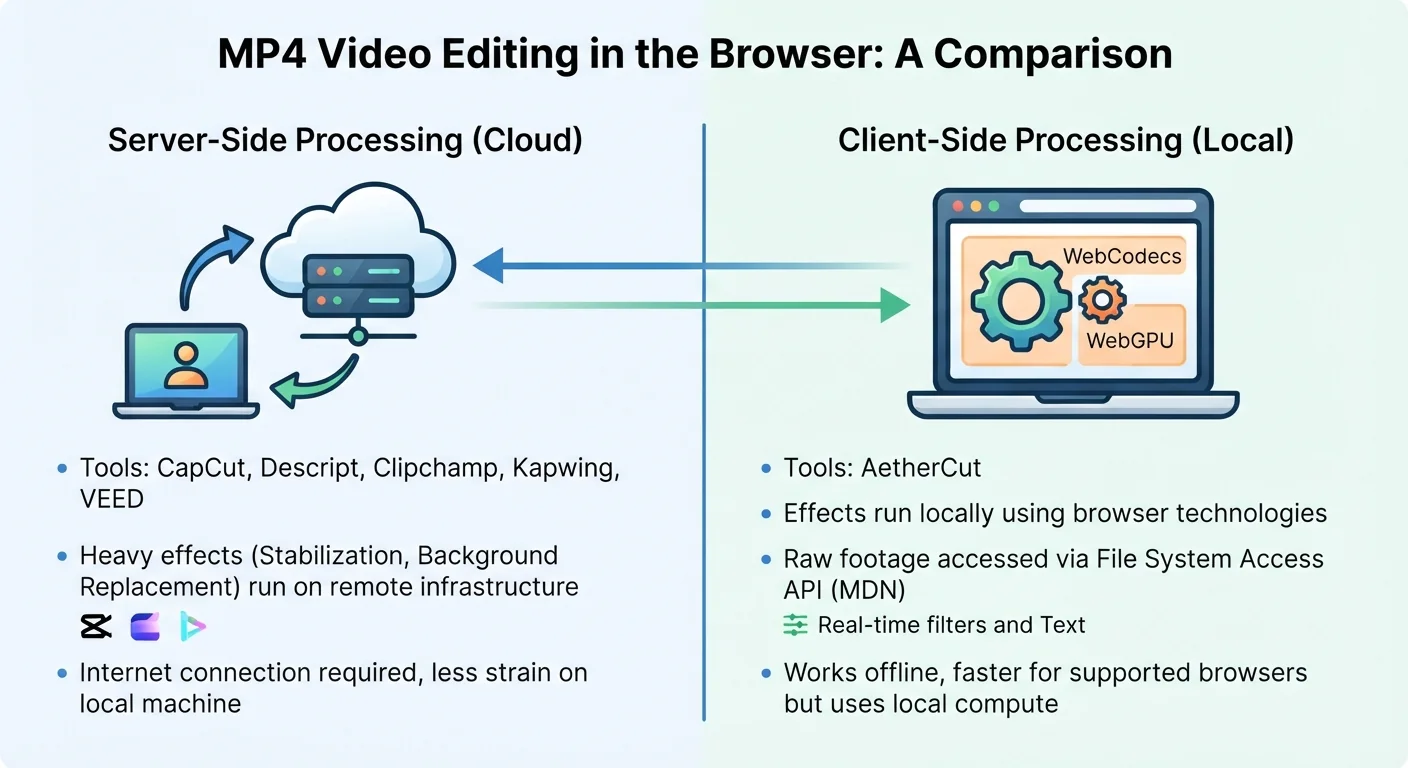
Most editors in this category do not work this way. Kapwing, VEED, Clipchamp, and CapCut all process footage on their own servers, which means the file leaves your machine before the first cut third-party review of browser editor privacy. Collaboration features and heavy effects need shared state, and shared state needs a server.
What 'no upload' actually means in DevTools
Open the Network tab, load a project, and scrub the timeline. If outbound requests carry video bytes, the promise is false. AetherCut publishes this as a test: open DevTools and verify zero outbound video bytes yourself. Verify the claim rather than trusting the marketing.
Why MP4 is the hardest codec to do client-side
H.264 and H.265 are patented, so browsers ship hardware decoders but not always encoders. WebCodecs closes the gap, but 4K encoding still depends on your GPU, which is why AetherCut's free editor exports without watermarks but recommends checking device support first.
Yes, two ways: chroma key for green screen footage and AI segmentation for everything else. Both run client-side on a decoded frame buffer, so the MP4 never leaves your machine. The catch is source quality.
Green screen vs AI segmentation on compressed MP4
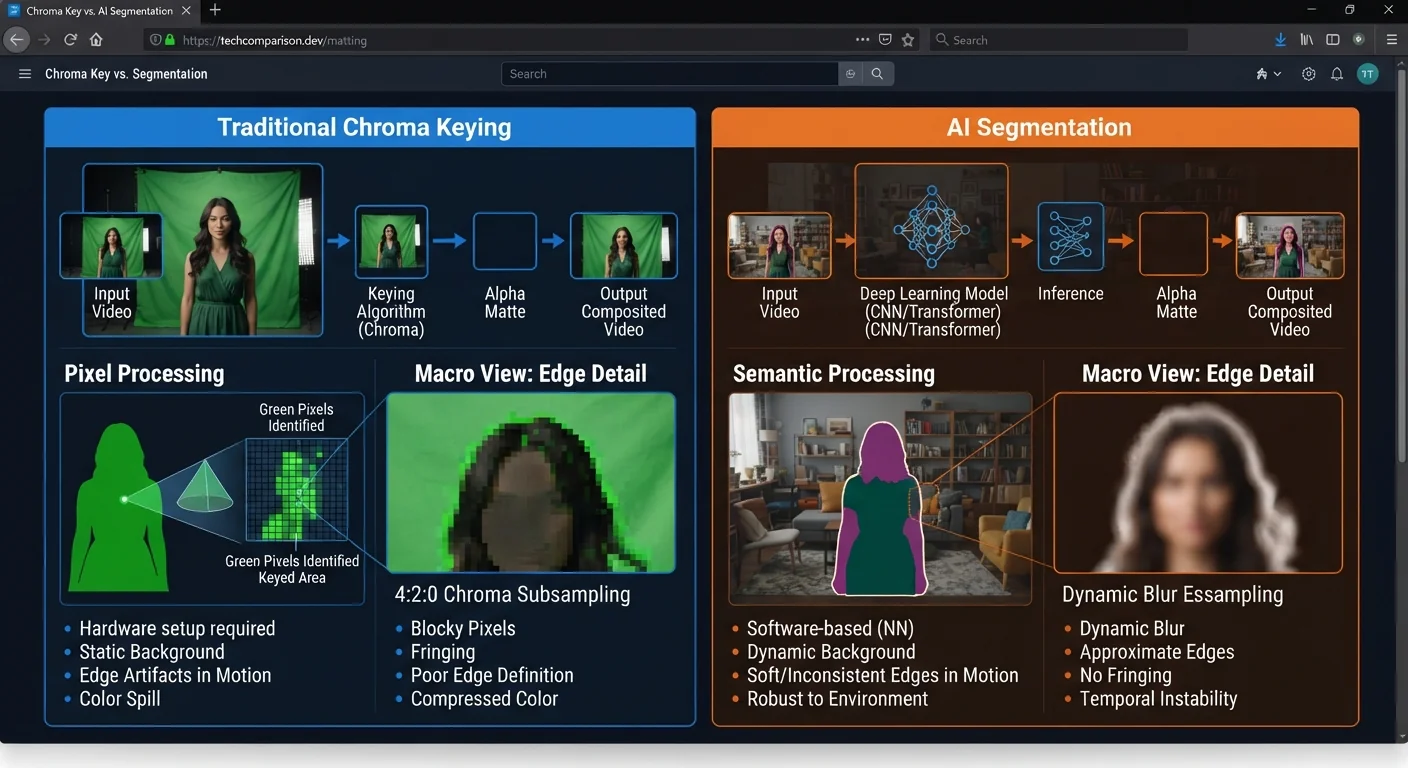
Chroma key is deterministic: it matches pixel colors against your key color. On a lightly compressed MP4 it works well. On heavily compressed footage, chroma subsampling smears green edges into hair and clothing, so you get fringing that no tolerance slider fully fixes.
AI segmentation estimates a person mask per frame. It handles messy rooms and no green screen, but on compressed MP4 it can flicker around fast motion, and edge detail like hair is approximate. Render the swap at the source resolution and export once, because re-encoding compounds softness. AetherCut runs both modes in browser; if you need frame-accurate keys on long footage, a local editor is the fallback (https://aethercut.app/g/offline-video-editor).
Transitions, text overlays, and filters are the fastest effects in a browser because they are just canvas or CSS operations over decoded frames. Stabilization, background replacement, and heavy color grades demand real compute: they re decode every frame and re-encode on export. Whether that stays on your machine depends on the editor. Tools like CapCut, Descript, Clipchamp, Kapwing, and VEED run effects on their infrastructure; a client side editor runs them locally through WebCodecs for decode/encode and WebGPU for rendering, with footage read directly from disk via the File System Access API (MDN).
AetherCut takes the local route: filters and text apply on the multi-track timeline in real time, and stabilization runs during export. The honest tradeoff is speed, since a desktop native app still renders complex effects faster than a tab. For a Chromebook workflow, see editing video on a Chromebook.
For a trim, crop, or captions pass, the fastest path is a client-side editor: open the MP4 in a tab, drag the cut points, export. No upload step means no wait for a multi-gigabyte deposition clip to transfer. AetherCut handles all three tasks in the browser, and its offline mode keeps working when the connection drops (https://aethercut.app/video-editor-no-internet).
Cut-only trimming vs re-encode
Most editors re-encode the whole file on export, which costs minutes and quality. A cut-only trim copies the existing keyframe segments and stitches them, so a 2 GB MP4 exports in seconds with zero generation loss. The tradeoff: cut points snap to keyframes, usually every 2-10 seconds depending on how the file was encoded. If you need frame-exact cuts, accept a partial re-encode of just the trimmed ends.
Auto-captions with Whisper locally
AetherCut runs Whisper in the browser via WebGPU, transcribing audio on your own hardware. For a 10-minute clip, expect transcription to take roughly the clip's duration on a mid-range laptop. Captions then export burned-in or as SRT. The honest limitation: heavy accents and crosstalk still produce errors, so budget a manual proofread pass.
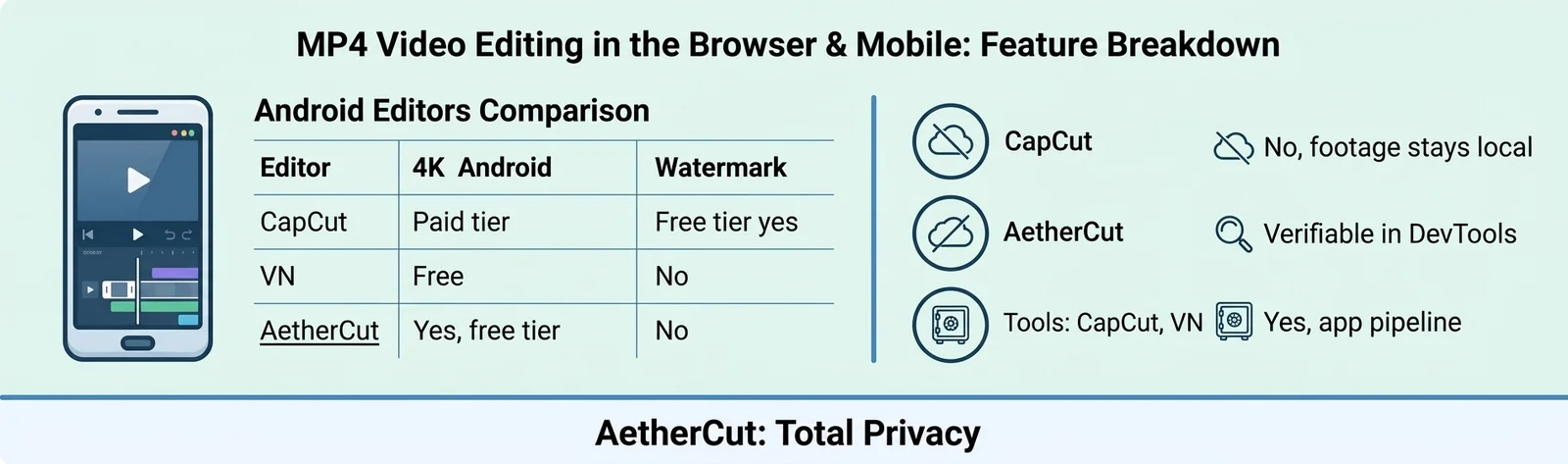
Short answer: both can, but the resolution you get depends on your tier, and neither option is private. On Android, CapCut and VN render exports inside their own app pipelines, so your footage passes through a third party's code with no way to audit what leaves the device. CapCut's official help pages document 4K export as a tier limited feature (CapCut help).
CapCut 4K export: what the free tier allows
The free tier caps export resolution below 4K on most Android devices; 4K requires a paid plan. Check the current limits in-app, since they change with pricing updates.
VN 4K export and watermark behavior
VN exports 4K without a watermark, which makes it the stronger free option on Android for resolution alone.
If privilege or HIPAA applies, the third column is the one that decides.
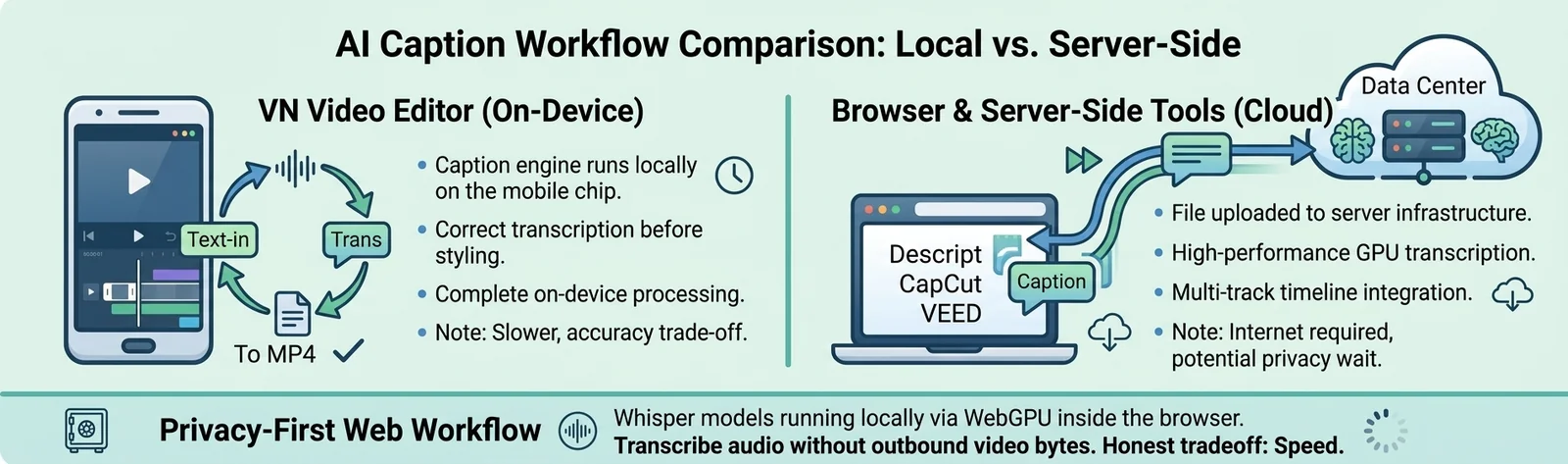
Yes. VN generates captions automatically on device, and you can correct the transcript before styling and burning them into the export. For a talking head MP4, that covers the basic caption workflow without a separate tool.
Browser tools like Descript, CapCut, and VEED also transcribe automatically, but the transcript step usually happens after your file reaches their servers. A privacy-first workflow flips that: Whisper models running locally through WebGPU transcribe the audio in your browser, on a multi-track timeline, with the Network tab showing zero outbound video bytes.
The honest trade off: local Whisper transcription is slower on a laptop without a discrete GPU than a data center transcript, and accuracy dips on heavy accents or noisy field audio. If your footage is privileged, that wait is the price of compliance.
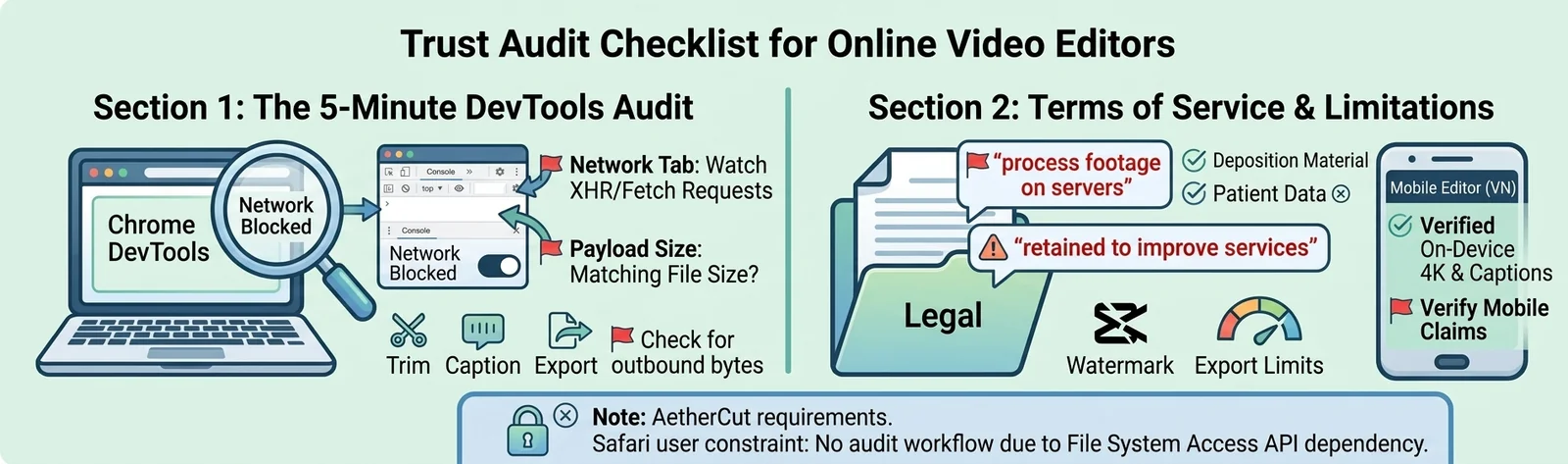
Run every candidate through the same four checks before it touches client footage.
The 5 minute DevTools audit
Open the editor, load a throwaway clip, then open DevTools and watch the Network tab while you trim, caption, and export. Filter for XHR and fetch requests: any payload matching your file size means bytes are leaving the machine. Export a short test file and confirm the render happens in-tab, using WebCodecs or WebGPU, with no outbound transfer. Repeat the test with your connection blocked (offline mode) — an editor that keeps working is processing client side.
Red flags in terms of service
Skip the marketing page and read the data handling clause. Phrases like "we process footage on our servers" or "retained to improve services" disqualify a tool for deposition or patient material. Also check watermark and export limits per tier, since a confidential cut with a burned-in logo is unusable. Mobile editors differ: VN's support documentation describes on device caption and 4K export behavior, which you should verify the same way.
Honest gap: our own AetherCut still requires Chrome's File System Access API, so Safari users cannot run the audit workflow at all.
Sensitive footage (legal, medical, HR)
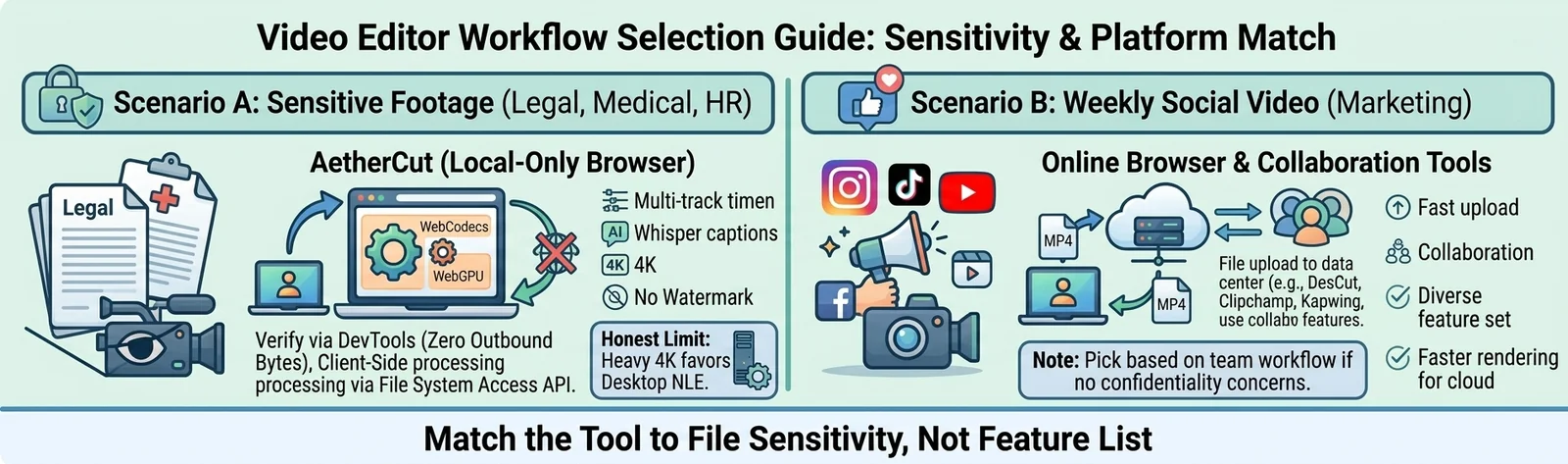
If the footage is a deposition, patient recording, or confidential HR interview, the workflow is non negotiable: a browser editor where you can open DevTools, watch the Network tab, and confirm zero outbound video bytes. AetherCut runs entirely client-side through WebCodecs and the File System Access API, with a multi track timeline, Whisper auto-captions, and 4K export, and no watermark on any tier. The honest limit: heavy 4K timelines with many tracks still favor a desktop NLE. For those projects, run the same DevTools check on a local install instead.
Weekly social video for small teams
If the clips are marketing content with no confidentiality concerns, pick the fastest path. Phone shot 4K that needs a trim and captions works in a browser editor or on device. If your team already lives in Descript, CapCut, Clipchamp, Kapwing, or VEED, their collaboration features justify the uploads. Match the tool to the sensitivity of the file, not the feature list.
How do I edit an MP4 video online without uploading it?
Use a client side editor. The File System Access API reads and saves the file from disk, WebCodecs decodes and encodes frames in the browser, and WebGPU handles scaling and effects. Verify the claim in DevTools: watch the Network tab while you scrub and export, and confirm no outbound video bytes leave your machine.
Can I remove the background of an MP4 video online for free?
Yes, using chroma key for green screen footage or AI segmentation for everything else, both running locally on decoded frames. Chroma key fringes on heavily compressed MP4s because chroma subsampling smears green edges. Segmentation handles messy rooms but can flicker during fast motion. Render at source resolution and export once to avoid compounding softness.
Does CapCut export 4K video for free on Android?
Usually not. CapCut's help pages document 4K export as a tier limited feature, and the free tier caps resolution below 4K on most Android devices. The paid plan unlocks it. Check in app before committing. CapCut also renders inside its own app pipeline, so your footage passes through third-party code you cannot audit for privacy.
Does VN Video Editor have auto captions?
Yes. VN generates captions automatically on device, and you can correct the transcript before styling and burning them into the export. For a talking-head MP4, that covers the basic caption workflow without a separate tool. VN also exports 4K without a watermark on the free tier, making it the stronger free Android option for resolution, though footage still runs through its app pipeline.
Is Clipchamp or CapCut safe for confidential video?
No. Both process footage on their own servers, so the file leaves your machine before the first cut, which disqualifies them for deposition, patient, or privileged HR material. For confidential work, use a client side editor you can audit: load a throwaway clip, watch the Network tab in DevTools, and confirm zero outbound video bytes during a full trim, caption, and export cycle.
Thanks for rating!