
By Robert J. Corn · Founder, AetherCut
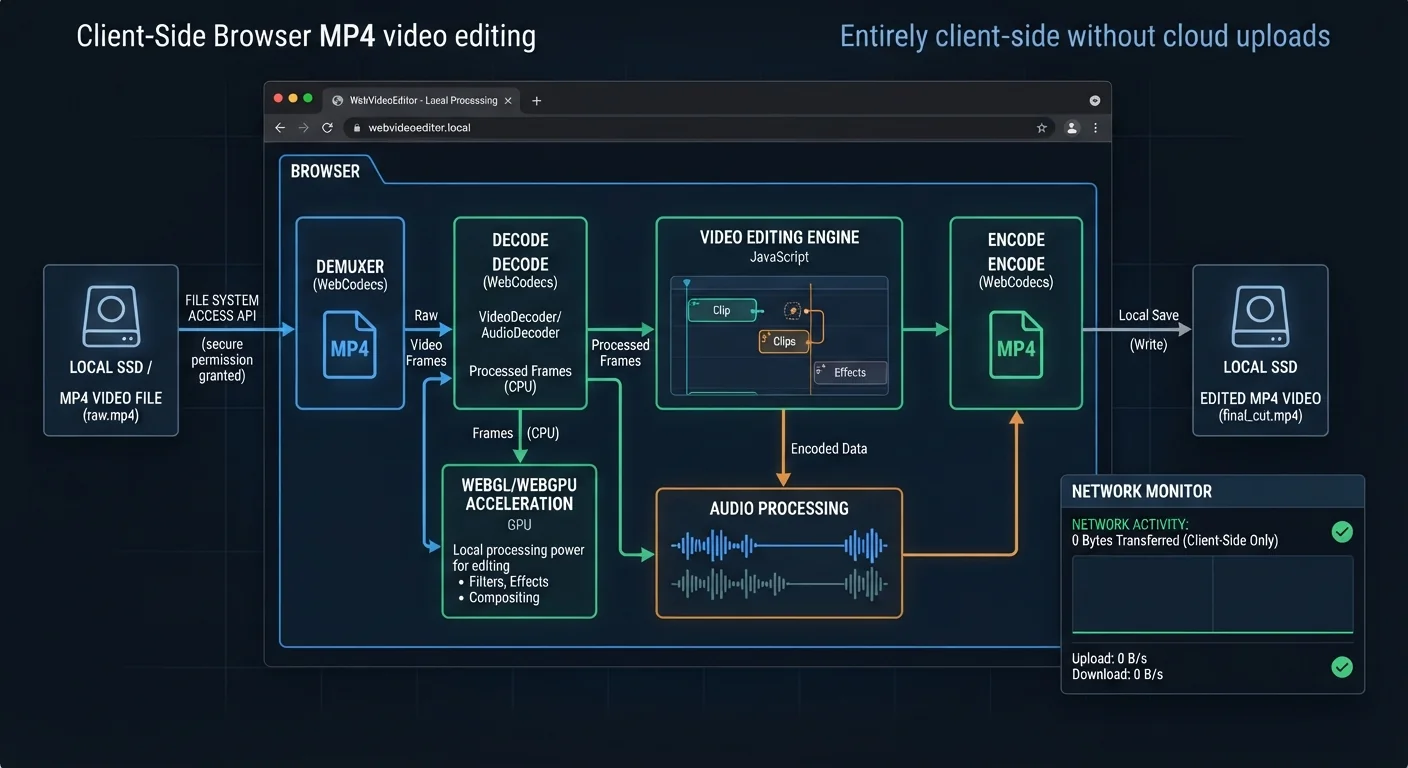
You can add AI voiceover to video entirely in your browser with no uploads: prep your script, pick a voice, sync it to your cuts on a multi-track timeline, pair it with auto captions for Shorts, and export locally. This walkthrough covers each step, plus where free tiers and the no-upload constraint break down.
You can add an AI voiceover to a video in a browser tab in four steps: import your footage, paste a script and generate the voice audio, drag the audio onto the timeline against your cuts, then export. No install, and no footage leaves your machine. That last part matters if you edit deposition clips, patient footage, or source material covered by an NDA, because sending it to a third party can trigger HIPAA business-associate obligations under HHS guidance on third-party service providers.
AetherCut runs this exact flow client-side; the voiceover feature is documented at AI Voiceover for Video — 60+ voices, 25 languages. You can open DevTools and watch the Network tab while you work: zero outbound video bytes.
Free tiers typically cover import, timeline editing, and export without a watermark, but voice generation minutes, voice variety, and export resolution are usually capped. Check the caps before you commit to a workflow.
Most browser editors named "free" run the heavy work on their own machines, not yours. Kapwing, VEED, Clipchamp, and CapCut all move your footage off your device to their servers for processing, which you can confirm yourself with the DevTools test below. For a lawyer cutting deposition video or an HR team editing training footage, that transfer is the compliance failure: it can breach HIPAA, attorney-client privilege, or NDA terms before you export a single frame.
Open your editor, load a clip, then open DevTools (F12) and watch the Network tab while you scrub the timeline. Sort requests by size and look for outbound POST or PUT requests carrying video-sized payloads, tens or hundreds of megabytes per single request. If you see them, your footage is leaving your machine, no matter what the pricing page or onboarding flow says. Run the test twice: once while scrubbing the timeline, and once while exporting, because some editors only move data at render time. Note the request domains too, since analytics endpoints are harmless but storage or CDN domains carrying large payloads are not. In AetherCut, the same test shows zero outbound video bytes, because trimming, captioning, and export all run client-side through WebCodecs and the File System Access API (free online video editor, no watermark).
| Editor | Where footage is processed | Safe for regulated footage? |
|---|---|---|
| Kapwing | Its cloud for processing | No |
| VEED | Its cloud for processing | No |
| Clipchamp | Its cloud for processing | No |
| CapCut | Its cloud for processing | No |
| Descript | Cloud sync tied to collaboration | Verify per project |
If your footage is confidential by contract or statute, the DevTools test is the only verification that counts, regardless of what a pricing page promises.
An AI voiceover reads exactly what you type, so script quality is the difference between narration and a text-to-speech demo. Preparation takes ten minutes and saves ten regeneration cycles.
Keep sentences under 20 words. Long clauses force the synthesizer to guess phrasing, and the guess is usually wrong. Use commas and periods to control pauses: a period gives a full stop, a comma a short breath, an em dash a dramatic beat. Spell out numbers the way you want them spoken ("two thousand twenty-six," not "2026"), and expand acronyms on first use unless the pronunciation is unambiguous. If you handle deposition or patient footage, remember that even script text can contain privileged material, so keep generation local; bar-association guidance on protecting client information when using outside services applies to metadata as much as footage. AetherCut's voiceover generation runs client-side, so scripts never leave the tab — the same architectural argument covered in zero-gigabyte handoffs for web-native video freelancing.
Roughly 150 spoken words per minute is a working baseline. Count your script, divide by 150, and compare against your footage length before generating anything. If the estimate overshoots by more than a few seconds, cut sentences now rather than speeding playback later, which makes voices sound clipped.
Break your script into one block per scene, drop each block onto the timeline at its scene's cut point, and let the speech engine tell you the block's duration. If narration runs 11 seconds but the scene is 9, you have three levers, and the order you pull them matters.
Rate first, trim second, re-block last. Nudge the speech rate up 5-10% before you touch footage, because speeding audio is invisible while cutting a scene mid-action is not. If rate alone closes the gap, you are done. If the scene still needs two more seconds, trim the tail of the clip rather than the head, since cut points at scene starts are where viewers notice sync errors.
Only when a block is more than 20% over its scene should you rewrite it shorter, because re-blocking resets your timing work. Leave half a second of breathing room at every scene end so narration never collides with the next cut. In AetherCut, each block sits as its own timeline object you can drag against the waveform, and the same per-scene blocks carry over when you export, as covered in the offline video editor walkthrough.
Match the voice to the footage's register: deposition excerpts and clinical training content need a neutral, measured read, while product promos tolerate warmth and energy. In AetherCut, audition two or three voices against your first scene before committing, because swapping a voice later means re-timing every cut. Keep language and accent consistent across the whole piece; a mid-video accent change reads as stitched-together content. If the footage is a client-facing legal summary or a source-protecting journalist segment, a human read still wins when nuance, irony, or emotional weight carries the message. AI voices handle clean informational scripts well and struggle everywhere else.
Short-form promo needs roughly 150 words per minute or faster; slow reads lose viewers in the first three seconds. Trim filler sentences from the script rather than cranking playback speed, which distorts pitch. Note that YouTube's monetization policy treats mass-produced, repetitively templated content as ineligible, so a generic synthetic read alone can hurt a Shorts channel (YouTube help documentation).
Generate captions from the voiceover audio, not the original clip audio. The voiceover is the narration viewers follow, so captions transcribed from it will match what's spoken. In AetherCut, the caption pass runs on the voiceover track using Whisper locally, so the transcript, the timing, and the footage all stay in the browser.
Check sync at every cut point before styling. Scrub the timeline to each scene change and confirm the caption switches on the frame the new sentence starts. Cuts are where drift shows up first, because the voiceover was timed to scenes independently of the source clips.
Switch the project to a 9:16 aspect ratio, then restyle captions for the vertical frame: large type, centered in the lower third, one or two lines maximum. Shorts viewers read captions with sound often off, so the text carries the argument.
Keep caption blocks short enough to survive the cut. If a sentence spans two scenes, split the caption at the cut so each block sits inside one shot. Export at 1080×1920 with captions burned in, all rendered client-side.
Most free tiers cap voiceover length by character count, so a 90-second promo script can exhaust your monthly allowance in one render. Voice selection is often locked behind paid tiers, and watermark-free export is rarely free. Editors built on a single video track, like FlexClip's one-video-track limitation, make it hard to cut away from your talking head to B-roll while the voiceover runs underneath. Workarounds: write tighter scripts, split long projects into scenes you render separately, and generate captions from the voiceover audio rather than paying for transcription tiers.
AetherCut has no watermark on any tier and no character cap, but its AI voices cover fewer languages than Descript, and rendering 4K timelines in the browser depends on WebCodecs support, which MDN documents as unavailable in some older browsers. On unsupported machines, export drops to 1080p.
In AetherCut, export runs entirely in your tab. The renderer pulls frames through WebCodecs, mixes the voiceover and timeline audio, and muxes them into a single file on disk via the File System Access API. No render queue, no progress emails, no temporary copy of your footage on someone else's disk.
Pick H.264 MP4 for YouTube Shorts compatibility, or WebM/VP9 for smaller files at the same resolution. Export at 1080p for Shorts; 4K works but takes proportionally longer since every frame decodes locally. Choose a bitrate rather than a preset if you need a predictable file size for an NDA-bound deliverable.
Open DevTools before you export, switch to the Network tab, and filter for media types. Start the export and watch: zero outbound video bytes. The only requests are static assets the app already loaded.
Run the same test on CapCut, Descript, or VEED.io and compare the traffic yourself. That verification step is the whole point: trust the Network tab, not the marketing page.
Yes. A browser tab is enough: import clips locally, paste your script, generate the voice audio, place it on a multi-track timeline, and export. Tools built on WebCodecs and the File System Access API handle trimming, mixing, and rendering client-side, so nothing gets installed and your footage never leaves your machine.
Only if the tool processes video and scripts client-side. Many popular editors transfer footage to their servers, which can trigger HIPAA business-associate obligations or breach privilege. Verify with DevTools: load a clip, watch the Network tab, and confirm zero outbound video bytes. The test, not the pricing page, is the proof.
Often, yes. Free tiers commonly gate watermark-free export behind paid plans, alongside caps on voice minutes, voice selection, and resolution. Workarounds include writing tighter scripts to stretch voice allowances and splitting projects into separately rendered scenes. Check the specific caps before building a workflow around any free tier.
Length isn't the problem; writing is. Keep sentences under 20 words, use punctuation to control pauses, spell out numbers as spoken words, and expand acronyms. A well-punctuated 90-second script reads cleanly, while a single long clause sounds wrong regardless of total runtime. Estimate 150 words per minute against your footage before generating.
Yes, if the content is original. YouTube's monetization policy treats mass-produced, repetitively templated material as ineligible, so a generic synthetic read over stock-style footage can hurt you. A custom script, deliberate scene sync, and captions burned into a 9:16 export make the Short look and perform like authored content.
Thanks for rating!